

I know that many of you don’t have, need or want a TELSTRA HOME PHONE/LANDLINE but trust me, there are still many of you out there that still use the service or have family and friends that use the facility.
If you are one of these people, the following information is vital to understand as it will have a huge impact on the way you use the service.
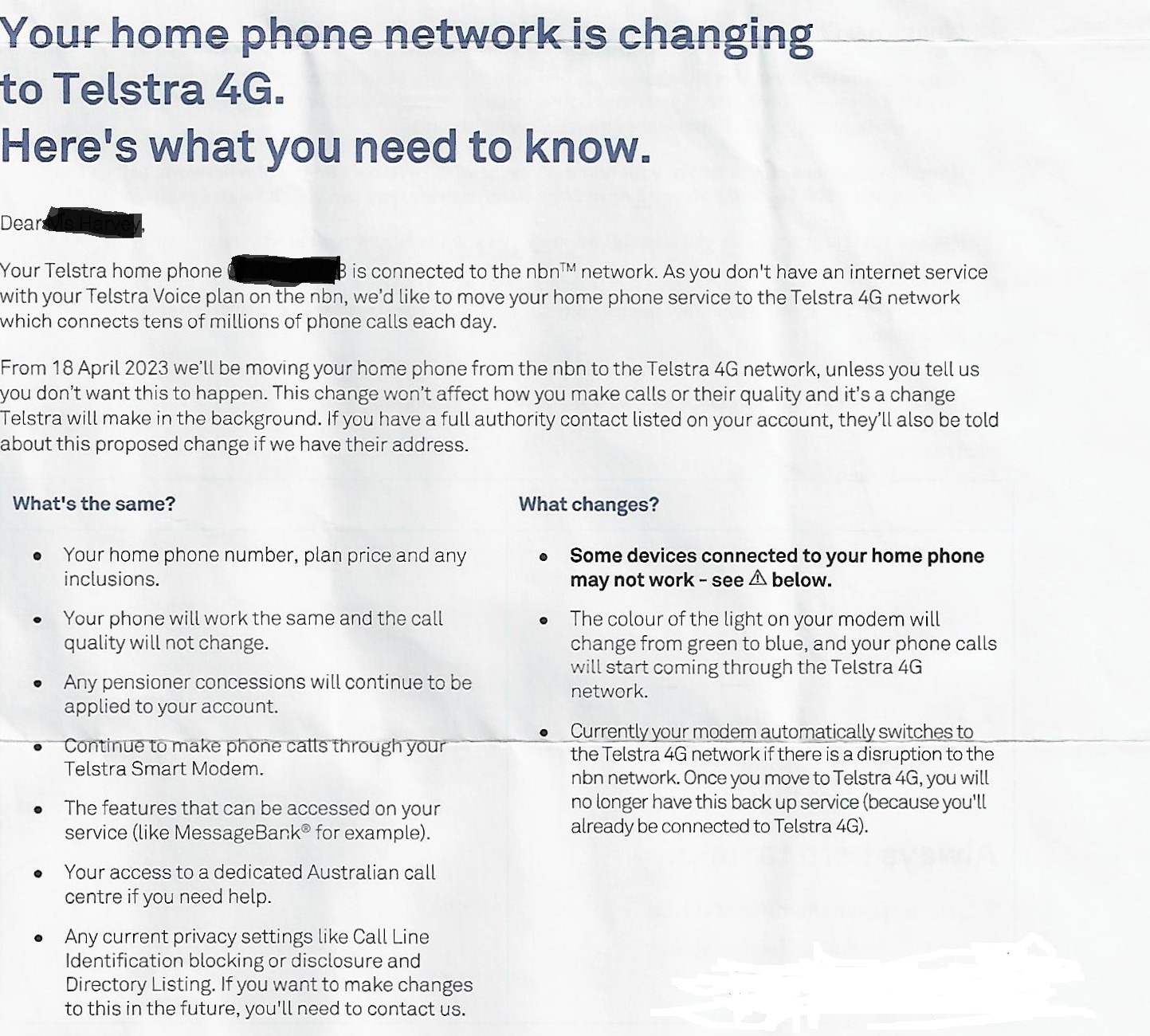
You see, if you are a Telstra NBN customer and you have a TELSTRA SMART MODEM 2 or SMART MODEM 3, on Tuesday 18th of April, 2023 your HOME PHONE will no longer use the NBN Fixed wired service and instead will revert to the 4G SIM that is built into the MODEM.
Whats the big deal you may say?
Its very very significant for the following reasons
Important things you need to know
- Calls via the 4G network will only work where there is 4G coverage so if you struggle to make a Mobile call from your home, then there is strong possibility that the TELSTRA 4G call may also not work too well?
- Priority Assistance isn’t available for this service. If you need Priority Assistance we’ll switch your home phone to an nbn network
- Home Wireless Voice is only available to customers who have received a letter of invite from us
- You should keep your Telstra Smart Modem plugged into the fixed connection point so we can switch your service to Home Wireless Voice or back
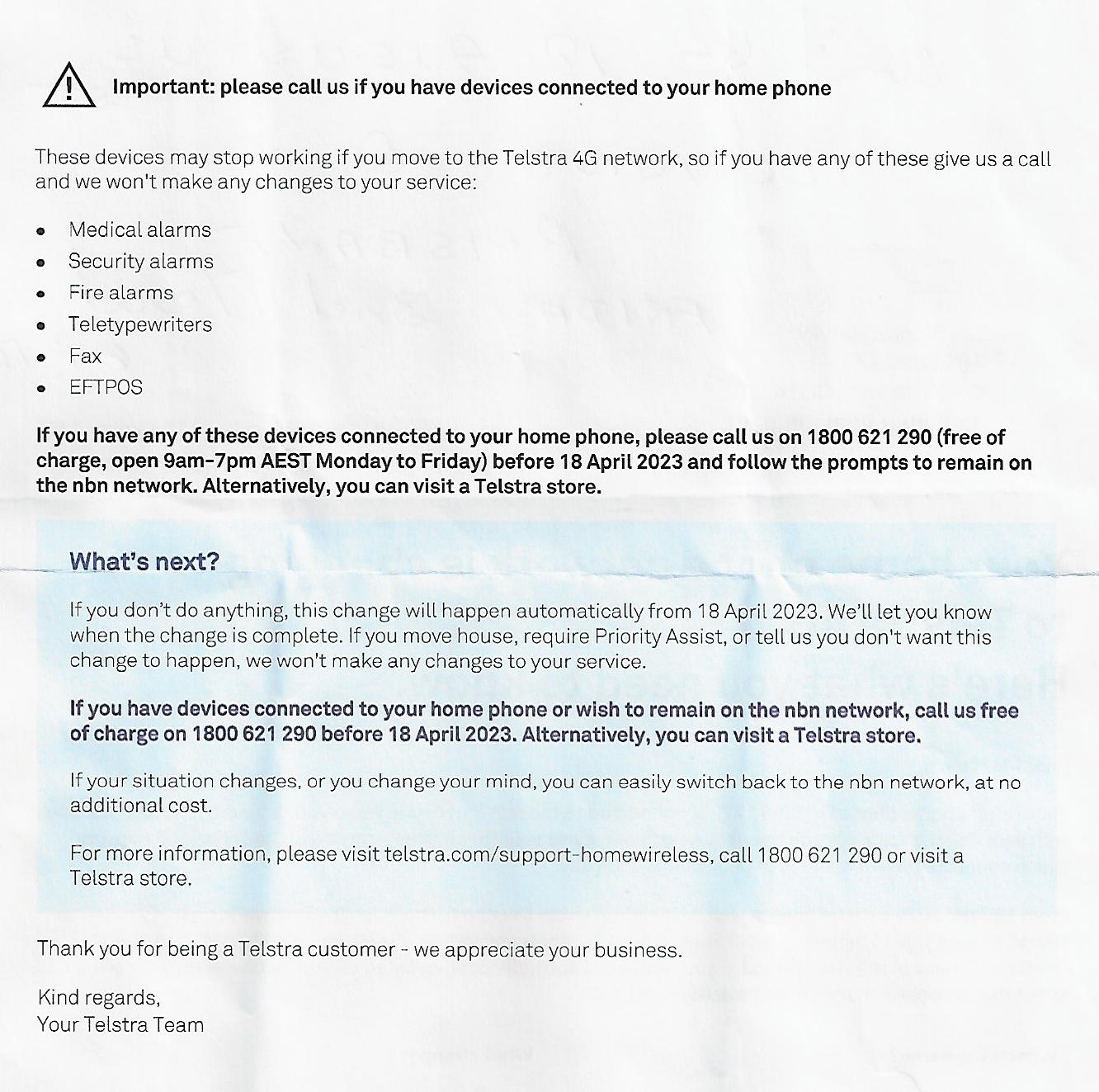
- Home Wireless Voice doesn’t support medical, fire or security alarms; lift phones, EFTPOS, Teletypewriter (TTY) and Fax
- When there’s a power outage you won’t be able to make voice calls on your home phone. Incoming calls will be captured by MessageBank
- You can access your missed calls and messages from MessageBank once power is restored
You can see that all going well, for many people, the change will not adversely impact them but there will also be many where the change will be problematic especially if they are relying on that service as their main form of communication.
The other factor with this change is that it will be done automatically UNLESS you specifically ring TELSTRA to advise them that you DO NOT WANT to use the 4G service for your Landline calls.
It should be the other way where a customer calls to OPT-IN to using the 4G but instead, the customer needs to call in to OPT-OUT.
So why are Telstra wanting to make these changes?
In a word, money
You see, for TELSTRA to deliver you a HOME PHONE, they need to use the NBN Fixed line service and that means paying rent to the NBN.
Think of it as a Toll Road. To use that road, you need to pay a toll.
Similarly with Home Phones through the NBN. The ISP’s ( in this case TELSTRA, need to pay NBN “rent” money for them to use the NBN network to deliver you Home Phone service
So aas a rough example, if your Home phone service through NBN was $40 per month, Telstra would have to pay NBN $10 out of that $40 in rent.
But wht if TELSTRA could use their own 4G network to make that Home Phone call?
That $40 that they charge you goes straight into the TELSTRA pocket and NBN get $0 because TELSTRA are no longer using the NBN network.
My strong advice for those affected is this.
If your phone line works well today and you need it for alarms, medical, priority assist etc, you need to call TELSTRA to advise them NOT to change your service.
If you dont do this, your service will be swapped over and there will be no guarantee on the quality of service your Home Phone will deliver
Telstra won’t tell you that there are things such as blackspots where the signal is barely a single bar or two. It won’t admit that some areas have extremely variable signal strength, and it has been unable to fix that.
And if you have emergency medical devices, alarms, Fax, EFTPOS etc., Telstra 4G won’t work.
Connecting your home phone to our 4G network
Make and receive voice calls on our 4G network using your Telstra Smart ModemTM.

What’s Home Wireless Voice?
Home Wireless Voice (or 4G fixed) is a home phone service that’s connected to the 4G network through your Telstra Smart Modem and doesn’t cost any extra. If you don’t use the internet and all you want is a home phone service to make and receive voice calls, then this could be the right service for you.
Why should I switch to Home Wireless Voice?
Having your home phone on the 4G network means your service is solely supported by Telstra. Our 4G network handles tens of millions of voice calls every day and if your service has a problem, we’re here to fix it for you.
Important things you need to know
- Priority Assistance isn’t available for this service. If you need Priority Assistance we’ll switch your home phone to an nbn network
- Home Wireless Voice is only available to customers who have received a letter of invite from us
- You should keep your Telstra Smart Modem plugged into the fixed connection point so we can switch your service to Home Wireless Voice or back
- Home Wireless Voice doesn’t support medical, fire or security alarms; lift phones, EFTPOS, Teletypewriter (TTY) and Fax
- When there’s a power outage you won’t be able to make voice calls on your home phone. Incoming calls will be captured by MessageBank
- You can access your missed calls and messages from MessageBank once power is restored
What do the lights on the Telstra Smart Modem mean when I’m connected to Home Wireless Voice?

Front Light Indicator
- White – Powered on, booting up
- Orange – Connecting
- Blue – Connected. Telstra Home Wireless active

Back Light Indicator
- Green – Great
- Orange – Good
- Red – Limited access
How to check the status of your Telstra Smart Modem and Home Wireless Voice connection
To check the status of your Telstra Smart Modem and Home Wireless Voice connection, enter http://192.168.0.1 in your browser and sign in with your username and password or use the default Username: admin and Password: Telstra.
What phone features are included with Home Wireless Voice?
Home Wireless Voice (4G fixed) includes the same features as a home phone service on the nbn network. You can check the features in the home phone user guide (PDF, 1.7MB).
Frequently asked questions
Yes, if you want to switch your home phone service back to the nbn network, contact us on 13 22 00 and we’ll switch you back in 24-48 hours. Your smart modem must be plugged into the wall socket or nbn co Network Termination Device (NTD) for this to happen.
-
If you need to replace your Telstra Smart Modem, follow these simple steps:

Step 1
The old smart modem you’re replacing is the:
- Telstra Smart Modem 2.0 which has ports arranged vertically down the back; or
- Telstra Smart Modem 1.1 which has ports arranged horizontally along the bottom edge on the back
Remove your old modem from the power source and place your new modem next to the old modem.
Step 2
Unplug and disconnect.
Remove the cables from the back of your old modem leaving them connected to your existing devices and wall socket.
Step 3
- Connect the cables to your new modem one at a time. The new smart modem is the Telstra Smart Modem 2.0 which has ports arranged vertically down the back.
- Connect the telephone cable into the grey port that’s located on the bottom left of your new modem.
- Connect the cable from your phone handset or base to the green port that’s located second up from the bottom on the right-hand side.
- Connect the cables from your devices to the four yellow gigabit Ethernet ports located on the left-hand side.
- All your cables should be connected now.
Note: If you disconnected any of your existing devices in the previous step, reconnect them now.
Step 4
Plug in your new modem and power up.
Make sure the power cord is plugged into the base of your modem and the power adaptor is plugged into the power point.
Remember that this modem is connected to your Telstra service and all your existing services will resume once the modem is successfully installed and powered on.
You may need to wait up to 5 minutes to allow the new modem to boot up and connect to our servers.
The light on the front of the new modem will turn blue when it’s connected. Or, to check the status of your Telstra Smart Modem connection, enter http://192.168.0.1 in your browser and sign in with your username and password or use the default Username: admin and Password: Telstra.
If you have any questions or need more help, call us on 13 22 00.


